How it works
- Take a photo of each page, or choose photos you already have.
- Drag the corners to the edges of the page and pick a look.
- Tap "Make PDF" and download it.
Good for
- A signed form or letter you need to email
- An ID card, certificate or marksheet for an online application
- Bills and receipts for a claim
From the makers of these tools
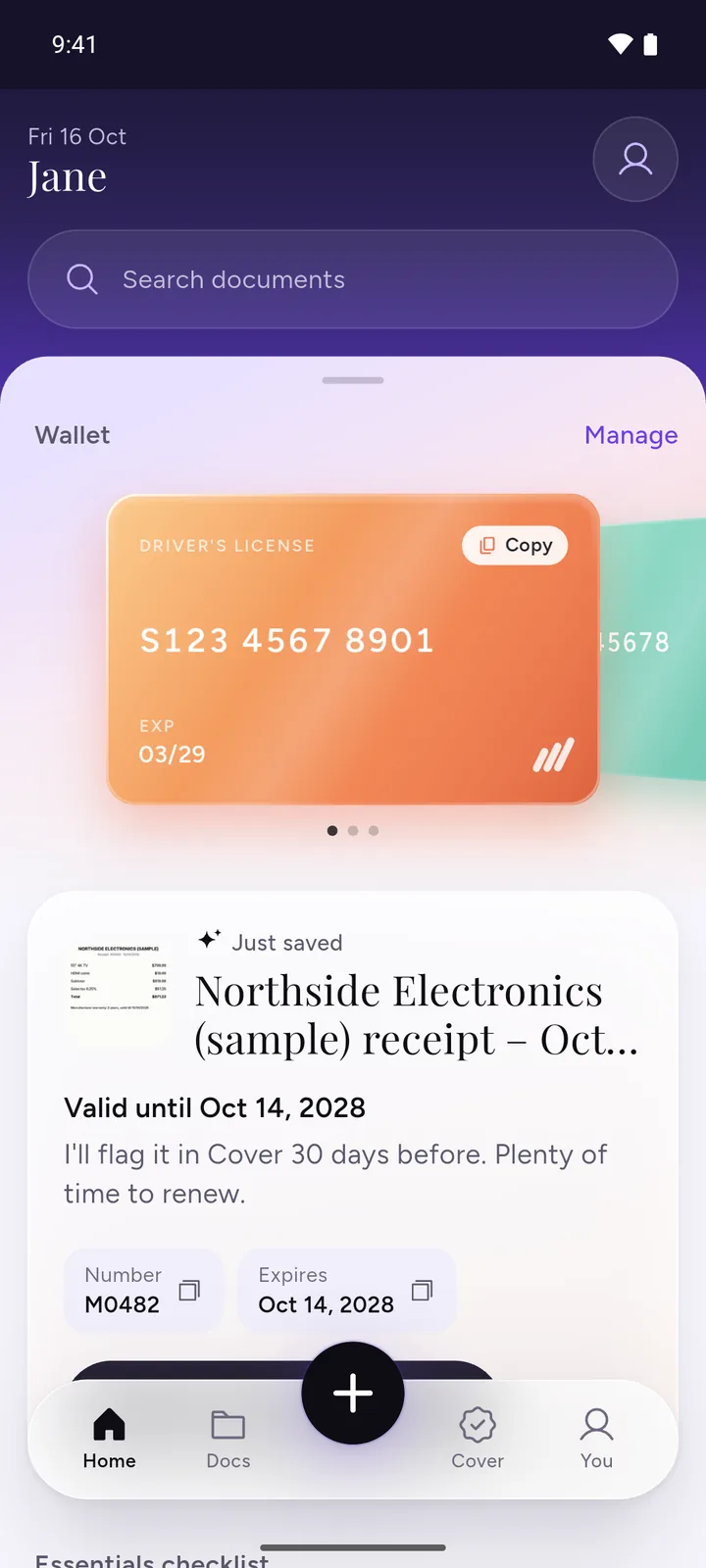
All your documents, safe on your phone
IDs, insurance, bills and warranties in one app, with a reminder before anything expires.
- ScanPoint your camera. It crops the page for you.
- RememberReminders 30, 7 and 1 day before expiry, once you turn them on.
- PrivateEncrypted on your phone. No ads, no sign-up.
 Download DocIt free
Getting a clean scan
- Put the page flat on a darker table, like wood or a dark cloth. A white page on a white bed sheet makes the corners hard to find.
- Use daylight or a bright lamp, and keep your own shadow off the page.
- Hold the phone straight above the page. Let the page fill most of the photo, with a little of the table showing around it.
- Wait for the camera to focus before you take the picture. A sharp photo matters more than a big one.
This page doesn't show a live camera view. "Take a photo" opens your phone's own camera. Take the picture, confirm it, and it comes back here for you to check.
Setting the corners
The page looks for a light sheet of paper on a darker surface. When it finds one, the corners are already set and you only need to check them. When it can't, it keeps the whole photo, and you drag each of the four corners to a corner of the paper. On a computer you can also move a corner with the arrow keys. The preview next to the photo shows the page as it will look, already straightened.
Picking a look
"Black and white" is the default. It suits printed or handwritten pages, because it turns the paper white, makes the text dark and clears most shadows. "Grayscale" drops the colour but keeps soft shading. "Brighten" keeps the colour but makes the paper whiter and the whole page lighter, which helps with a photo taken in dim light. Use "Original" for colour ID cards, photos and certificates with a coloured seal. One look applies to the whole PDF, so if one page needs colour, pick "Original" for all of them.
Page size and file size
"A4" puts each page on a standard A4 sheet, which suits printing and most forms. "Fit to page" makes each PDF page the same shape as your cropped photo. Each page comes out at about 150 to 250 KB. If an upload form has a limit, tap "Make it smaller" after the PDF is ready, or open compress PDF to 100 KB. To join the scan with other PDFs, use merge PDF.
iPhone photos
iPhones often save photos as HEIC. They work here only if your browser can open them. If one won't open, change it with HEIC to JPG and pick the JPG instead.
What happens to your photos
Your browser makes each photo smaller (2000 pixels on the long side), moves the four corners to a straight rectangle, turns it and applies the look. Then it writes one PDF on your device. Nothing is sent anywhere. Close the tab and the photos are gone.
Scanning on an Android phone? Our guide on how to scan documents on your Android phone walks through the other ways to do it.
On Android, DocIt scans documents with automatic edge detection and crop, up to 20 pages in one scan. It reads the document on your phone and suggests a name, number and expiry date. You check them before saving. Get DocIt on Google Play
Questions
How do I scan a document online?
Open this page on your phone and tap "Take a photo". Your phone's camera opens. Take the picture, then drag the four corners to the edges of the page if they aren't there already. Add more pages if you need to, pick a look and tap "Make PDF". On a computer, "Take a photo" opens your files instead, so pick photos you already took.
Are my photos uploaded?
No. The pages are straightened, cleaned up and put into a PDF inside your browser tab. Your photos aren't sent to us or anyone else, and nothing is saved after you close the tab.
Does it find the edges of the page by itself?
Only in one case: a light page on a darker surface, like white paper on a wooden table. If it can't tell where the page is, it keeps the whole photo and you drag the four corners to the edges yourself. Either way, the page is straightened so it looks flat and square in the PDF.
Which look should I pick?
"Black and white" is picked for you. It turns the paper white, makes text dark and clears most shadows, and it keeps the file small. For a colour ID card, a photo or anything where colour matters, pick "Original". The look you choose is used for every page in the PDF.
How big will the PDF be?
About 150 to 250 KB a page. The size shows when the PDF is ready. If a form asks for a smaller file, tap "Make it smaller" or use compress PDF to 100 KB.
Can I scan several pages into one PDF?
Yes, up to 30 pages. You can change their order, turn any page that's sideways and delete the ones you don't want before you make the PDF.
Related tools
- Compress PDF to 100 KBGet a PDF under 100 KB for an upload form, in your browser.
- JPG to PDFTurn photos (JPG, PNG or WebP) into one PDF.
- Merge PDFJoin PDFs into one file.