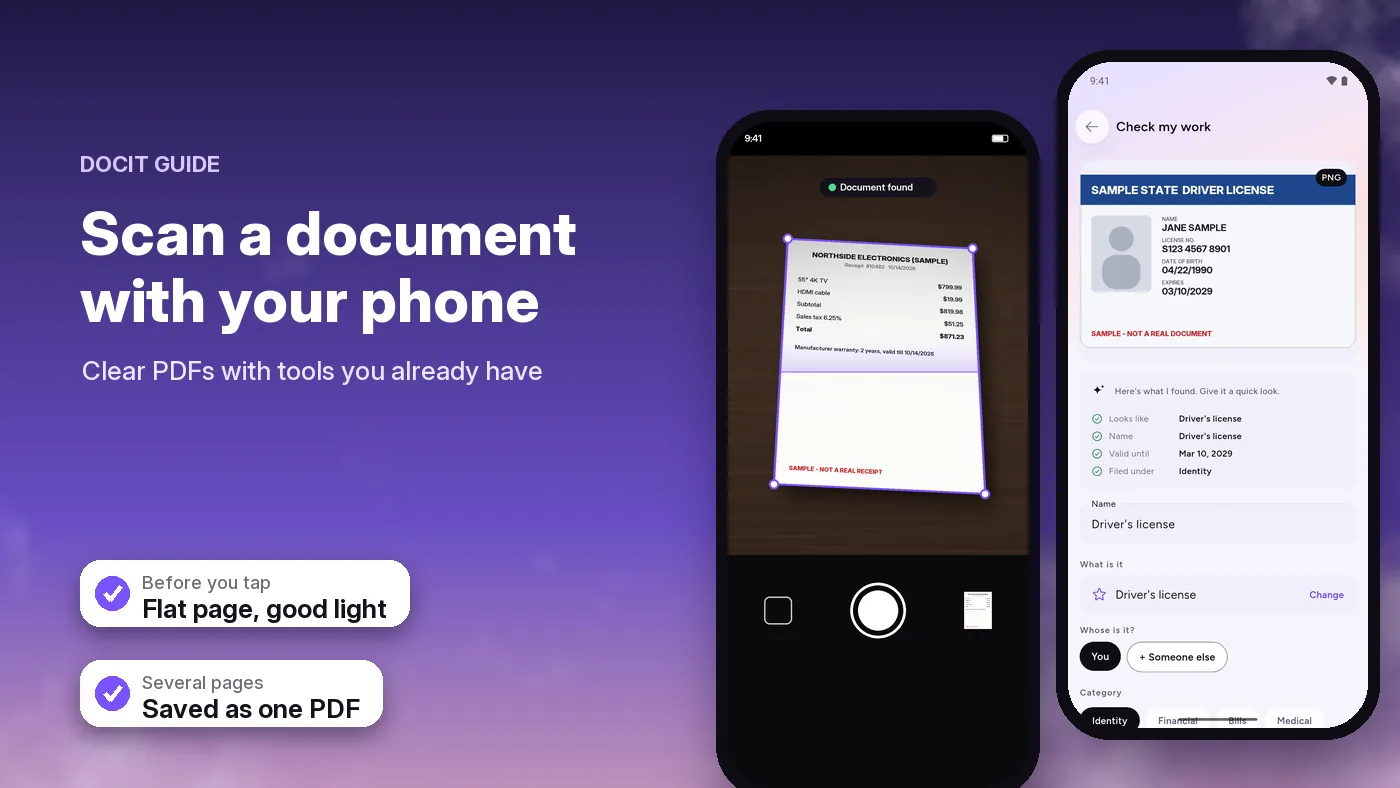
To scan a document on Android, open Google Drive and tap Camera, or open Files by Google and tap Scan, then photograph the page and tap Done to get a PDF. On recent Samsung Galaxy phones, the Camera app shows a Scan button when you point it at a document. Drive and Files by Google cost nothing, crop the page for you and can put several pages into one PDF.
Last checked 17 October 2026 against Google Drive Help, Files by Google Help and Samsung Support.
Quick steps
- Google Drive: open Drive, tap the Camera button at the bottom right, take the photo, tap Done, then Save. You get a PDF in your Drive.
- Files by Google: open Files, tap Scan at the bottom right, take the photo, tap Done. The PDF is saved on your phone.
- Samsung Galaxy: point the Camera app at the document and tap Scan when it appears. The scan goes to your Gallery.
Any of these is enough for most everyday jobs. Read on for tips that make the scan easier to read, and for when a scanner app is worth it.
Before you scan: light, background, flat paper
- Use even light. Daylight near a window works well. Avoid a lamp directly overhead, which can leave a glare spot or the shadow of your phone.
- Put the document on a plain, darker surface. A white page on a dark table gives the scanner a clear edge to find and crop.
- Flatten it. Unfold creases and hold curled corners down with something that won't end up in the picture.
- Hold the phone straight above the page, not at an angle, and wait a moment for it to focus.
- Wipe the camera lens. A smudge from your pocket can blur the whole page.
Option 1: the scanner already on your phone
These steps come from each company's own help pages. Menus can look a little different depending on your phone and app version; the help pages linked in Sources have the latest steps.
Google Drive
- Open the Google Drive app.
- At the bottom right, tap Camera.
- Point the camera at the document. A blue line shows where the picture will be cropped.
- Take the photo. You can switch between Manual and Auto capture.
- Fix anything you need: Crop & Rotate, Filter (colours or greyscale), Clean (erase stains and fingers), Add (another page), Retake or Delete.
- Tap Done, type a file name or pick a suggested one, and choose .pdf or .jpg.
- Optionally tap Location to pick a Drive folder, then tap Save.
Google says the PDFs it makes are searchable. Drive also has a "Drive scan" home-screen widget if you scan often. The scan is stored in your Google account, not just on the phone.
Files by Google
- Open Files by Google.
- At the bottom right, tap Scan.
- Point the camera at the document. A blue outline shows where it will be cropped.
- Take the photo, with Auto capture or Manual.
- Adjust it: Crop and rotate, Filter, Clean (remove unwanted objects), Add, Retake or Delete.
- Tap Done.
Scans are saved as searchable PDFs on your phone, in a "Scanned" folder inside Downloads. You'll also see them under Recents on the app's home screen. If Files isn't on your phone, it's on Google Play.
Samsung Galaxy: Camera and Samsung Notes
- Open the Camera app and line up the viewfinder with the document.
- Tap Scan when it appears.
- When it has finished, tap Save, or Retake to try again.
Samsung says the camera removes unwanted shadows and hands and straightens the page. The scan is saved in the Gallery app. If you don't see Scan, Samsung's guide for newer phones says to turn it on in Camera, Settings, Scanning, Document scan.
To get a PDF, open Samsung Notes, tap New note, then Attach, Image, Gallery, and pick the scan. Samsung Notes can export the note as a PDF.
If you'd rather not make a note, our free JPG to PDF tool turns the Gallery scans into one PDF in your browser, without uploading them.
Which built-in option to use
| Option | Where the scan goes | Several pages in one PDF | Needs |
|---|---|---|---|
| Google Drive | Your Google Drive (cloud) | Yes, tap Add | A Google account and internet to upload |
| Files by Google | On your phone, Downloads, Scanned | Yes, tap Add | The Files by Google app |
| Samsung Camera | On your phone, in the Gallery | Not covered in Samsung's guide | A Samsung Galaxy phone; Samsung Notes for a PDF |
Last checked 17 October 2026 against Google Drive Help, Files by Google Help and Samsung Support (sources below).
Option 2: a scanner app, and what to look for
A separate app is worth it when you scan often, want your documents organised, or want more privacy than a gallery or a cloud folder gives. Before you install one, check these:
- No watermark. Some free scanners stamp their name on every page. That looks careless on a form.
- No sign-up wall. You shouldn't need an account just to scan one page.
- Where files go. On your phone only, the company's cloud, or a cloud you choose? The store listing's Data safety section and the app's privacy policy should tell you.
- How it makes money. Ads, a subscription or a one-off price. Check the "Contains ads" and "In-app purchases" labels on the Play listing.
- Works offline. Useful when you're in a basement office with no signal.
- A lock. If you keep ID copies in it, look for a fingerprint or PIN lock and encryption.
- Exports a normal PDF you can attach to an email or upload to a form.
We compared six scanner apps on these points in CamScanner alternatives that keep your documents on your phone.
Scanning several pages into one PDF
Scan the pages in order in one go, rather than one file per page. In Google Drive and Files by Google, tap Add after each page and Done at the end; you get one PDF. Before saving, flip through the preview to check that no page is missing, doubled or upside down. Most apps let you delete or retake a single page without starting again.
Making the scan readable
- Crop to the page. The scanner usually finds the edges for you. If it cuts off a corner, drag the crop handles out.
- Pick the right filter. A clean colour or greyscale filter makes text sharper. Keep colour for anything with stamps, signatures or photos, so they stay visible.
- Zoom in before you send. If you can't read the small print on your own screen, the person receiving it won't either. Retake it.
- Watch the file size. Personal Gmail accounts can attach up to 25 MB; above that, Gmail swaps the attachment for a Drive link. Online forms often set their own, smaller limit, shown on the upload page. If a file is too big, split a long document into parts.
- Name it so you can find it. "Lease 2026" beats "Scan_0042".
Where the scan ends up, and keeping it private
A scan of a bank statement or an ID card is worth protecting. Know where each option puts it:
- Google Drive keeps it in your Google account, so anyone who gets into that account can see it. Turn on two-step verification. Google's help page says it doesn't use your Drive content for advertising.
- Files by Google keeps it on the phone. Its Safe folder hides files behind a PIN or pattern. Google warns that if you forget the PIN or pattern, you can't get the files back.
- The Gallery is where a Samsung camera scan lands. Any app you've given full photo access can see it, and it may be copied to a cloud if photo backup is on.
Once you've sent a scan, delete extra copies from chats and Downloads. There's more on this in where to keep your important documents on your phone.
How DocIt handles this
We make DocIt, so read this part with that in mind. DocIt is for keeping important documents, such as IDs, insurance, vehicle documents and bills, rather than only making PDFs.
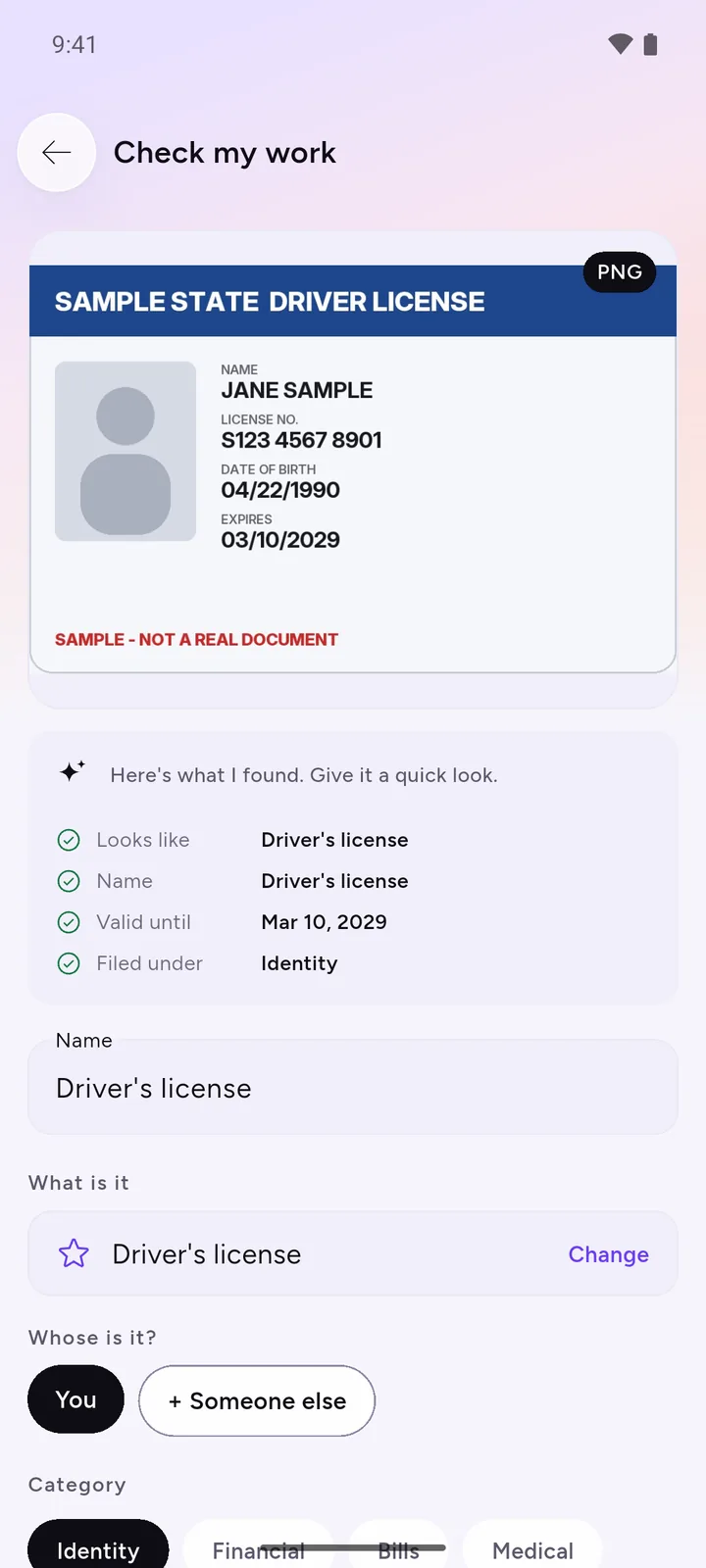
- Scan: automatic edge detection and crop, plus rotate, filters and a clean-up tool for stains and fingers. Up to 20 pages go into one PDF.
- Reads it for you: DocIt reads the page on your phone and fills in the name, ID number and expiry date for you to check.
- Keeps it private: the scan is encrypted on this phone with AES-256, and you can lock the app with your fingerprint or PIN. No sign-up and no ads. We have no server, so your documents never reach us.
- Keeps it organised: folders, search by name, type or number, and sharing in two taps when someone asks for a copy. You can also import photos and PDFs you already have.
The honest part: the scanner inside DocIt is Google's ML Kit document scanner, not our own. It needs Google Play services and a one-time download the first time you use it. Google says ML Kit sends it diagnostics, such as device model, app version and error codes; its list doesn't include the content of your scans. Reading the page and encrypting it happen on your phone and work offline.
DocIt doesn't compress, merge, sign or edit PDFs, reads only Latin-script text (so not Arabic, Hindi or Chinese, for example), and can't open password-protected PDFs yet.
DocIt is free on Google Play in the US, UK, Canada, Australia and 7 more countries, on Android only.
DocIt's offline document scanner · How DocIt compares with other scanner apps · How DocIt protects your documents, and its limits · Which scanner app keeps documents private
Questions
Can I scan documents on Android without installing anything?
Often, yes. Google Drive and Files by Google both have a Scan button, and many Android phones already have one of them. Recent Samsung Galaxy phones can also scan from the Camera app. If you have none of these, Drive and Files by Google are on Google Play.
Does it cost anything?
Scanning with Google Drive, Files by Google or a Samsung camera costs nothing. Scans saved to Drive count towards the 15 GB of storage that comes with a Google account, shared with Gmail and Google Photos.
How do I put several pages in one PDF?
In Google Drive or Files by Google, tap Add after each page, then Done. Both save the pages together as one PDF.
Will an office accept a scan from my phone?
It depends on who is asking. Many forms and emails accept a clear scan. Some offices still want the original, or an official digital copy from whoever issued the document, so check their rules first.
Does DocIt need internet to scan?
Only once. DocIt uses Google’s document scanner, which Google Play services downloads the first time you use it. After that, scanning, reading and saving work offline.
Is DocIt available in my country?
DocIt is free on Google Play in the US, UK, Canada, Australia and 7 more countries, on Android only. There is no iPhone app yet.
Sources
All checked on 17 October 2026.
- Google Drive Help: scan documents with Google Drive (Android)
- Files by Google Help: how to scan documents
- Files by Google Help: protect your files with Safe folder
- Samsung Support: scan and edit documents on your Galaxy phone or tablet
- Samsung Support: turn on Document scan in the Camera settings (Galaxy S26)
- Gmail Help: attachment size limits
- Google One Help: how your Google storage works (15 GB)
- Google ML Kit: document scanner
- Google ML Kit: data disclosure