Open the split PDF tool in your phone's browser and tap Choose PDF. Leave Chosen pages into one PDF selected, type the pages you need (for example 1, 14) and tap Split PDF. The new PDF goes to your downloads. Nothing is uploaded and you don't need to sign up. If the PDF has a password, unlock it first. If the new file is still over the limit, compress it after you split it.
Split a PDF in your phone's browser
- Open docit.one/tools/split-pdf in Chrome or any browser on your Android phone.
- Tap Choose PDF and pick the file from Downloads or wherever you saved it. The tool shows its size and how many pages it has.
- Under "How do you want to split it?", keep Chosen pages into one PDF.
- In the Pages box, type the page numbers, such as 1, 14 or 2-3. You can also scroll down and tick the page pictures instead. Typing is quicker for a long PDF, and the pictures help you check you've got the right pages.
- Check the line next to the button. It says what you'll get, such as "You'll get 2 pages into one PDF."
- Tap Split PDF. When it says "Done", the file is in your downloads.
- Open the new PDF and look at every page before you upload it.
The pages are copied as they are, so they look exactly like the original. Your original PDF doesn't change.
Split a PDF on a PC
The same tool works in Chrome, Edge or Firefox on a computer. Drag the PDF onto the box that says "Drop a PDF here", or click Choose PDF. The page pictures are bigger on a computer screen, which makes it easier to find the page with your address on it in a long statement. Tick the pages, click Split PDF and the file lands in your Downloads folder.
If you already have the PDF open in Chrome on a computer, its print option can do a simple split too. Press Ctrl+P, set Destination to "Save as PDF", choose Custom under Pages and type the pages you want, then click Save.
Pull 2 pages out of a long statement
Forms often want part of a statement, not all of it: the first page with your name, address and account number, and a page that shows a recent transaction or the closing balance. Do it in this order.
- Unlock it if it has a password. Bank statements, Form 16 and e-PAN PDFs usually open with a password, and the split tool can't open locked PDFs. Use the unlock PDF tool with the password you already use, tap Unlock and download the copy. If you don't know the password format, this guide lists the formats banks use.
- Find the page numbers. Open the PDF and note which pages the form wants. The page pictures in the split tool help here, since the first and last pages of a statement usually look different from the transaction pages in between.
- Split. Type the pages, such as 1, 14, and tap Split PDF. Pages that aren't next to each other still end up in one file. They go in the order you type them, so 14, 1 puts the last page first if a form wants it that way.
- Check the size and compress if needed. Compare the new file's size with the limit on the form. If it's over, run it through the compress PDF tool and pick the size the form allows.
Split first and compress second. A size limit is shared by every page in the file, so 2 pages in 200 KB each get ten times the room that 20 pages in 200 KB would. They come out much easier to read.
Size limits after you split
Splitting doesn't shrink a page. It just leaves the other pages out. How small the new file is depends on what kind of PDF you started with:
- A statement you downloaded from net banking is usually text, and a page or two of it is often small enough already.
- A scanned or photographed statement stores every page as a picture, so each page can be a few hundred KB. Two scanned pages can still be over a 100 KB or 200 KB limit. Compress them after you split.
Some forms have a lower limit too. The NEET (UG) 2026 information bulletin, for example, asks for each document as a PDF between 50 KB and 300 KB. A single text page can come out under 50 KB, so check the "Done" message or your Files app for the size before you upload. For how to read a file's size on your phone and what to do when a file won't fit, see compress a PDF to 100 KB on your phone.
One scan, several upload boxes
Sometimes the problem is the opposite: you scanned several documents into one PDF and the form has a separate upload box for each. The NEET bulletin above lists the Class X certificate and the Class X marks sheet as two separate PDFs. If both are in one scan, split them apart:
- Pick Each range as its own PDF and type the ranges, for example 1, 2-3. Each range becomes its own file.
- Or pick Every page as its own PDF to get one file per page.
When you get more than one file, they download together as a ZIP. On Android, open the ZIP in Files by Google and extract it to get the separate PDFs. Each file is named after its pages, so you can tell which is which.
Doing it in the DocIt app
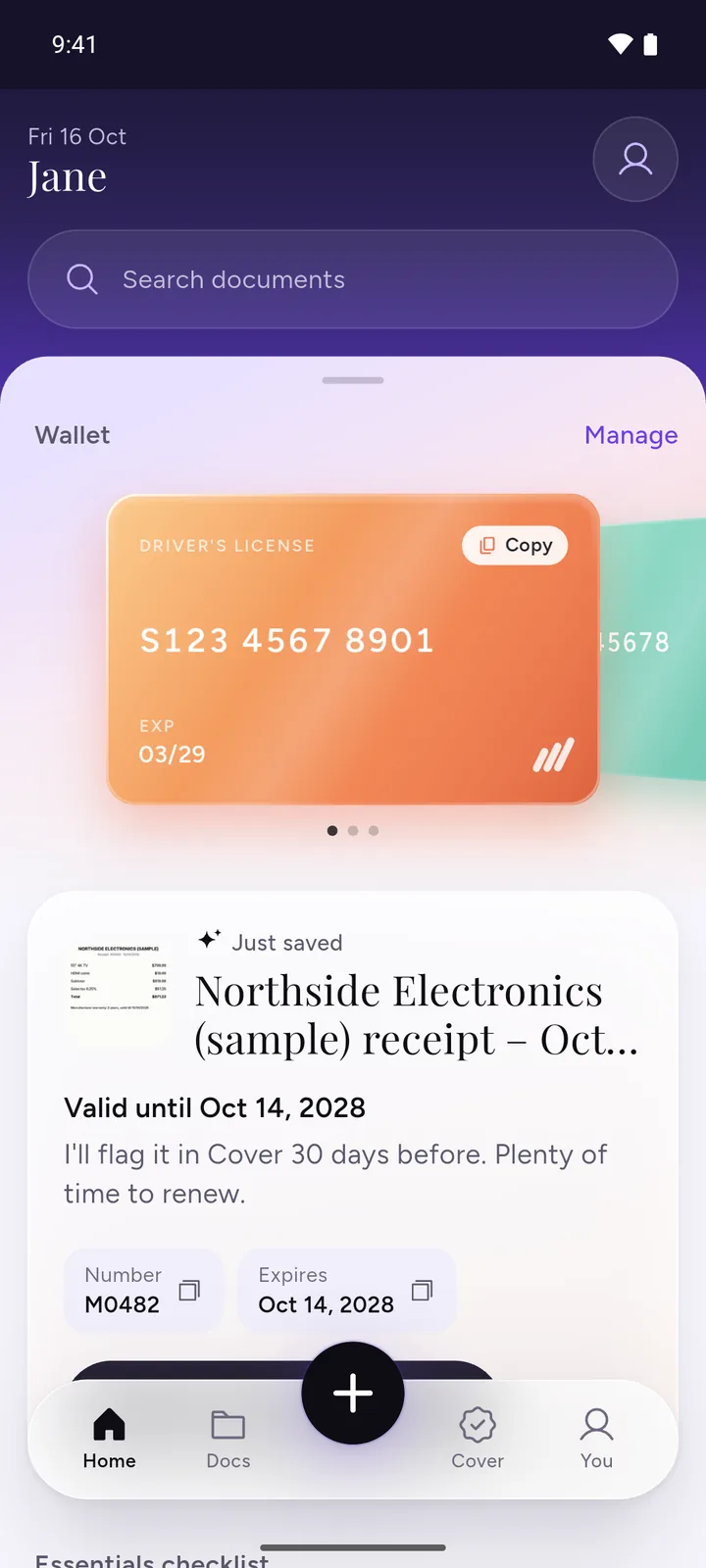
We make DocIt, so keep that in mind as you read this part. DocIt is a free Android app for keeping your documents on your phone, and it can split a PDF you've saved in it.
- Add the PDF to DocIt from Files, your gallery or Google Drive, or share it into DocIt from WhatsApp or Gmail. If the PDF has a password, you type it once and DocIt keeps an unlocked copy, encrypted on your phone.
- Open the document, tap the More button and choose Split PDF.
- Choose Each page on its own, or type the pages, like 1-2, 3-5. Each comma starts a new document.
- Tap Split. The parts are saved as new documents next to the original, which stays as it is.
If a part is still too big for the form, open it and use Make it smaller from the same menu, then share it straight to the form. DocIt is free on Google Play, on Android.
Questions
Can I split a PDF on my phone without an app?
Yes. Open the split PDF tool in Chrome on your phone, choose the PDF, type the pages you want and tap "Split PDF". The new PDF is made inside your browser and the file isn't uploaded.
Does splitting make the pages blurry?
No. The split tool copies each page as it is, so the text and the picture stay the same. Only compressing changes how sharp a page looks.
Why won't my bank statement open in the split tool?
Most bank statements have a password, and the split tool can't open password-protected PDFs. Unlock it first with the unlock PDF tool using the password you already know, then split the unlocked copy.
How do I take out pages that aren't next to each other?
Type them with a comma, such as 1, 9. With "Chosen pages into one PDF" they go into one file, in the order you type them. If you want them as two separate files, pick "Each range as its own PDF" instead.
I split the PDF and it is still too big. What now?
Compress the smaller file with the compress PDF tool and pick the size the form asks for. Two pages squeezed into 200 KB stay much sharper than twenty pages squeezed into the same 200 KB.
Where do the split files go on Android?
To your Downloads folder, like any other download. One PDF downloads on its own. Several PDFs come in one ZIP file, which you can open in Files by Google.
Related
- Split PDF: take out the pages you need, in your browser
- Compress PDF to 100 KB, 200 KB, 500 KB or 1 MB
- Compress a PDF to 100 KB on your phone: check the size and what to do when it won't fit
- How to delete pages from a PDF on your phone: keep the whole document minus a blank or unwanted page
- How to merge PDFs on your phone: the other way round, several files into one
- Image to PDF for forms: photos of documents into one PDF under a size limit
- Unlock a bank statement PDF: the password formats banks use
How we checked: the NEET size limits were read in the official bulletin on 3 November 2026. The tool steps were checked against the tool's code and live page on the same day, and the DocIt steps against the app's code.