With no app, use DocIt's free image to text tool in any browser: pick the image and tap Copy text. Nothing is uploaded. On Android, you can also open the Google app, tap the Lens icon, point the camera at the text or pick a screenshot, then tap Select text and Copy. On an iPhone, open the photo, touch and hold a word and tap Copy (that's Live Text). On a computer, open the image or PDF from Google Drive with Google Docs. Whichever you use, check names and numbers against the original before you paste them anywhere that matters.
In your browser, no app needed
DocIt's image to text tool works in the browser on a phone or a computer. It reads the image inside your browser tab, so your pictures aren't uploaded or saved.
- Open docit.one/tools/image-to-text.
- Under "Text language", keep English for text that's only in English. Choose Hindi and English only when the page has printed Hindi on it. English numbers read more reliably with English selected.
- Tap Choose images and pick a JPG, PNG or WebP picture. You can pick up to 20 at once. They're read in order of file name, each under its own heading.
- Wait a few seconds for the text to appear in the box. Fix any wrong words there.
- Tap Copy text, or Download .txt to save it as a text file.
It's made for printed or typed text. It doesn't read handwriting reliably. To use a PDF, save its pages as pictures with PDF to JPG first.
On Android: Google Lens
These steps are from Google's help page on region selection in Lens. You need the Google app.
- Open the Google app and tap the Lens icon in the search bar.
- Under "Search with your camera", tap Search.
- Point the camera at the page and tap the shutter button, or upload a picture from your Screenshots.
- Tap the text, or drag the corners of the box over the part you want.
- Tap Select text. A menu opens around the text. Tap Copy.
- Paste it into a message, a note or a form.
The same menu has Translate and Listen, which help with a notice in a language you don't read.
From a photo in Google Photos
If the picture is already in Google Photos, open it there. Google's Google Photos help page gives these steps:
- Open the Google Photos app and select the photo.
- At the top, tap More, then Google Lens.
- Tap and select the words you want to copy.
On iPhone: Live Text
Apple calls this Live Text. Its help page, copy and translate text from photos, says you need an iPhone XS, iPhone XR or later, with iOS 15 or later.
- Check Live Text is on: open Settings, tap General, tap Language & Region, then turn on Live Text.
- Open the Photos app and pick the photo or screenshot. You can also use an image you find online.
- Touch and hold a word, then move the grab points to cover the text you want.
- Tap Copy. To take all the text in the photo, tap Select All first.
You can skip the photo. Open the Camera app, point it at the text and tap the Live Text button. Live Text also works on a paused video if you have iOS 16 or later.
On a computer: Google Docs, or Lens in Chrome
Google Docs, for a whole page or a PDF
This is the best way on a PC when you want all the text from a scan, not one line. Steps from Google Drive Help, convert PDF and photo files to text:
- Upload the image or PDF to Google Drive. It works with PDF, JPEG, PNG and GIF files of 2 MB or less.
- In Google Drive, right-click the file.
- Click Open with, then Google Docs.
- The file opens in Google Docs as text. Select what you need and copy it.
Google says bold, italics, font size and line breaks usually carry over. Lists, tables, columns and footnotes usually don't, so a bank statement or a table will need tidying.
Google Lens in Chrome, for an image on a web page
Google's Chrome help page says to set Google as your default search engine first. Then:
- Right-click the image in Chrome.
- Click Search with Google Lens. Lens opens in a side panel.
- Highlight the text in the picture, or drag over it.
Google's page describes this as a way to search what you select. It doesn't describe a copy button. If you don't see a way to copy, save the image and use the Google Docs steps above.
In the DocIt app (Android)
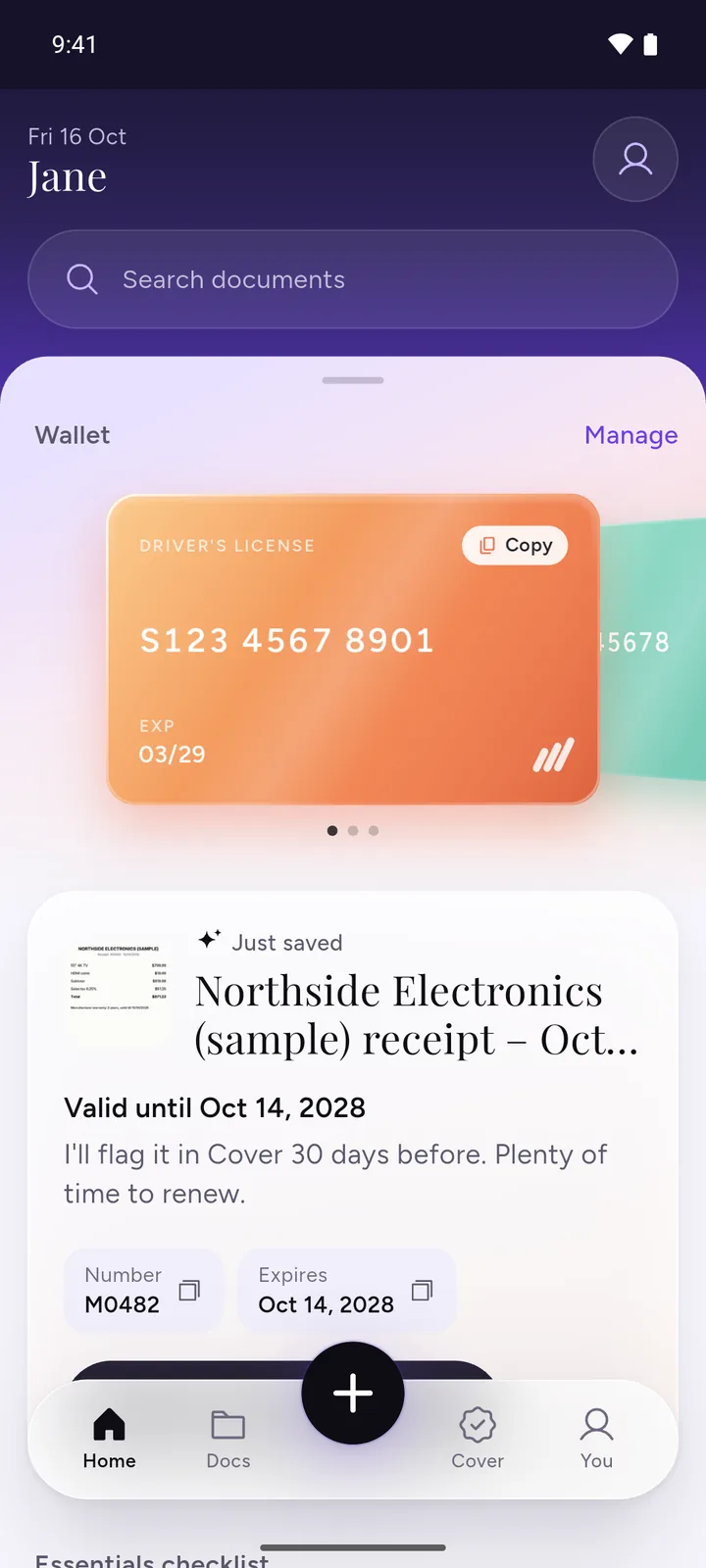
We make DocIt, so weigh this part with that in mind. DocIt is a free Android app for keeping your documents on your phone. If the page is one you'll need again, such as a policy, a bill or a letter, you can save it in DocIt and copy its text whenever you need it.
- Get the page into DocIt. Scan it with the camera, import a photo or PDF, or share it in from another app.
- Open the document and tap Copy text. DocIt reads the page on your phone.
- Press and hold to select the part you need, or tap Copy all. A PDF with several pages shows the text page by page, with each page labelled.
- Paste it wherever it needs to go.
DocIt reads English and other languages written in Latin letters. The app can't read Hindi, Tamil or any other Indian script, or handwriting. For printed Hindi, use the image to text tool with "Hindi and English" selected. A password-protected PDF has to be unlocked in DocIt before you can copy from it. DocIt is free on Google Play, on Android only. The OCR scanner page has more on how Copy text works.
Getting fewer mistakes
Every one of these tools reads the shapes of letters, so a better picture gives better text.
- Use good light. Daylight or a bright lamp, with no shadow from your hand or phone across the page. Google's Drive help asks for sharp images with even lighting and clear contrast.
- Keep the page flat. Hold the phone straight above the page, not at an angle. Smooth out folds. If the photo came out sideways, rotate it first: Google Docs needs the page right side up.
- Crop to the text. Cut away the table, the floor and any other papers, and fill the frame with the part you need. Small print reads better when it's bigger in the photo. Google says text should be at least 10 pixels high.
- Check numbers by hand. Read every account number, amount, date and ID back against the original, digit by digit. A 0 read as O, or a 1 read as l, is easy to miss, and one wrong digit can get a form rejected.
Clear printed text reads best. Google suggests common fonts such as Arial or Times New Roman. For more on taking a clean scan with your phone, see how to scan documents on Android.
Which one to use
- No app, on any phone or computer, including printed Hindi: the image to text tool.
- One line from something in front of you, on Android: Google Lens.
- Anything on an iPhone: Live Text in Photos or the Camera.
- A full page, a multi-page scan or a PDF on a computer: Google Docs from Google Drive.
- A document you'll keep and need again on Android: the DocIt app, for English and other Latin-letter languages.
Questions
Can I copy text from a screenshot?
Yes. On Android, Google Lens lets you upload a picture from your Screenshots, then tap Select text and Copy (Google's steps). On an iPhone, open the screenshot in Photos and use Live Text the same way as for any photo.
Can I get the text out of a scanned PDF?
On a computer, Google Docs can open a PDF from Google Drive and turn it into text, if the file is 2 MB or smaller (Google Drive Help). On Android, the DocIt app's Copy text works on PDFs too, page by page. For the web tool, save the pages as pictures with PDF to JPG first.
Can I copy Hindi or other Indian-language text from an image?
For printed Hindi, use the image to text tool and choose "Hindi and English" before you pick the image. The DocIt app can't: it reads English and other languages written in Latin letters only, so not Hindi, Tamil or any other Indian script. For other Indian languages, Google's help page for converting files with Google Docs lists many, including Tamil and Bengali (see the language list).
Why are some letters or numbers wrong?
The reader guesses each letter from its shape. A blurred, dark or tilted photo makes it guess wrong, and some pairs look alike: 0 and O, 1 and l, 5 and S. Take a clearer photo and check every number by hand before you use it.
Is my picture uploaded when I do this?
It depends on the tool. Chrome's help says that when you search with Lens, Chrome sends a screenshot and page data to Google (Chrome Help). Google Docs works on files in your Google Drive. DocIt's image to text tool reads the image inside your browser, and the DocIt app reads the page on your phone, so neither sends your picture to us.
Related
- Image to text: copy or download the text from up to 20 images in your browser
- OCR scanner: how DocIt's Copy text works on photos, scans and PDFs
- How to scan documents on Android: a clean scan reads better
- Unlock PDF: open a password-protected statement before you copy from it
- Image to PDF for forms: turn photos of documents into one PDF
How we checked: the image to text tool steps were checked against the tool's page and code, the Google Lens, Google Photos, Google Docs and Chrome steps were read on Google's help pages, and the Live Text steps on Apple's support page, on 3 November 2026. Menus can change with app updates. The DocIt steps were checked against the app's code.