

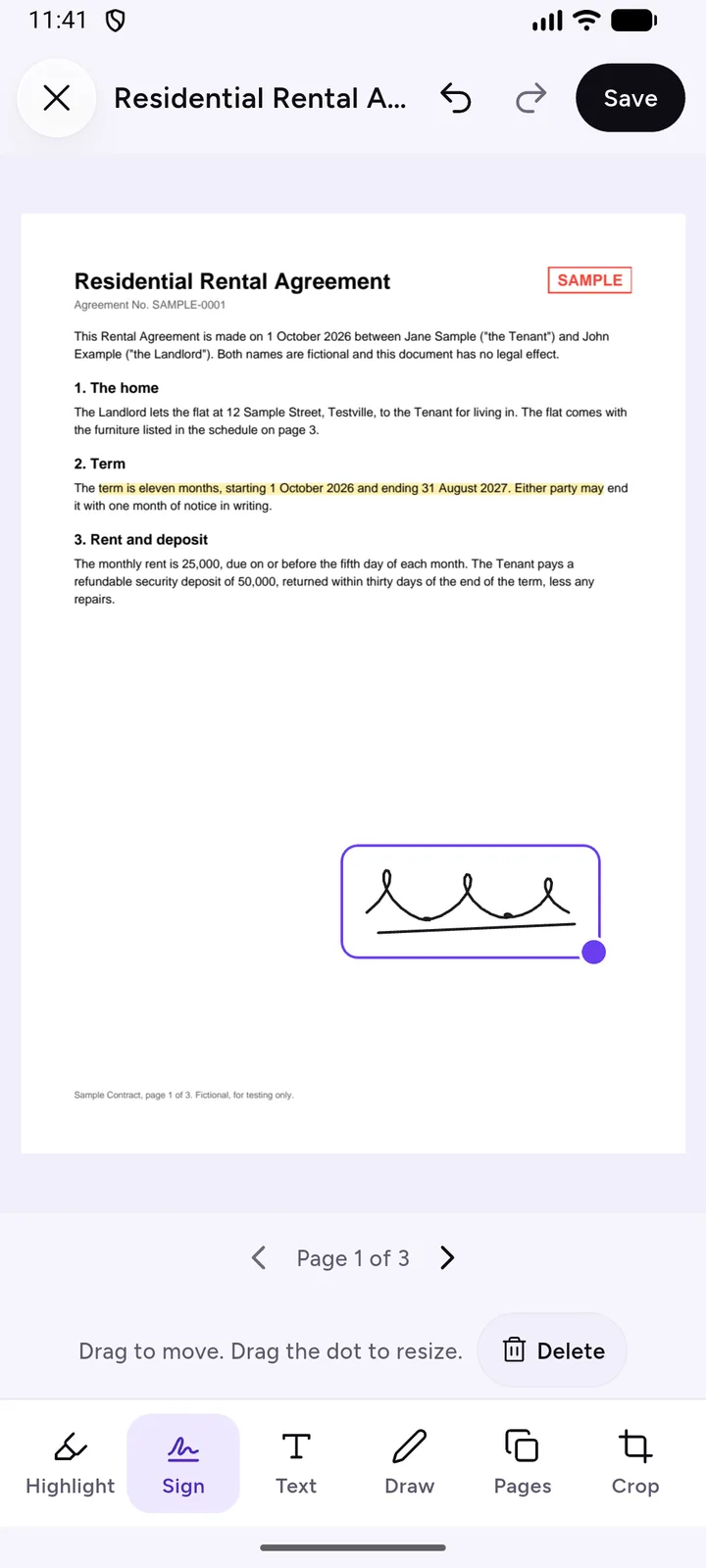
Someone sends you a PDF and asks you to sign it and send it back. The old way is to print it, sign it, scan it and email it. On an Android phone you can skip the printer: put your signature straight onto the PDF and share the signed copy.
DocIt's PDF editor has a Sign tool for this. It runs on the phone, the file isn't uploaded, and the signed PDF has no watermark.
How to sign a PDF on Android with DocIt
- Add the PDF to DocIt. Import it from Files or share it in from the app it arrived in, such as your email app.
- Open it and tap Edit PDF, then tap Sign at the bottom.
- The first time, sign with your finger on the signature pad and tap Save signature. Or tap Upload a picture instead (more on that below).
- Tap the page where the signature should go. Drag it to move it, and drag the dot at its corner to make it bigger or smaller.
- Need the date or your name next to it? Tap Text, tap the page and type it.
- Use the arrows under the page to move to the next page that needs signing.
- Tap Save. Choose Save as a copy if you want to keep the unsigned version as well.
- Share the signed PDF from the document page.
Drawn or uploaded: which looks better
A signature drawn with a fingertip on a small screen often looks shakier than the one you make with a pen. If that bothers you, upload one instead:
- Sign on plain white paper with a dark pen. A thicker pen works better than a fine one.
- Take the photo in good light, straight on, without your shadow over the paper.
- In DocIt, tap Upload a picture instead and pick the photo from Photos or Files. DocIt clears the paper background so only your ink goes on the page, and shows you a preview.
- If the preview looks patchy, tap Try another and use a better photo. Faint pencil or a grey background may not work.
Whichever you choose, DocIt keeps it encrypted on your phone so you can place it again next time.
Signing every page, or adding initials
Rent agreements and some bank forms ask for a signature or initials on every page. Place your signature on page 1, then move to each page and tap again to place it. If the form wants initials, draw your initials as a second signature with Draw new, and keep using it for that document. Drawing replaces the saved signature, so draw your full signature again when you need it.
What kind of signature this is
A signature you draw or upload is a picture of your handwritten signature placed on the page. Plenty of everyday documents are signed this way, such as rental forms, school consent slips and offer letters. Some official filings in India ask for a digital signature certificate (DSC) or an Aadhaar-based eSign instead. Those come from certifying authorities licensed by the Controller of Certifying Authorities, and DocIt can't create them. If you're not sure which kind is needed, ask whoever sent you the document before you sign.
Other ways to sign a PDF
- Adobe Acrobat Reader for Android has a free Fill & Sign tool.
- Print, sign and scan still makes sense when someone insists on a wet-ink signature. Scan all the pages in one go and DocIt saves them as one PDF. See how to scan documents on Android.
- Formal e-sign services are the right choice when the sender needs a signing record or a certificate-based signature.
Limits worth knowing
- Signing works on PDFs only. A photo or one-page scan has to become a PDF first.
- A locked PDF must be unlocked with its password before you can sign it.
- DocIt runs on Android only.
- It doesn't send the document for others to sign or track who has signed.
Signing is one of several tools in DocIt's PDF editor app, next to highlight, text, draw and page tools. To shrink the signed file for an upload form, use Make it smaller on the document page, or read our guide on getting a PDF accepted by an online form. DocIt is free on Google Play.
Questions
Do I have to draw my signature every time?
No. DocIt keeps it encrypted on your phone. Next time, pick the Sign tool and tap the page, or choose Use my signature. Draw new or Upload replaces it.
Can I sign a photo or a one-page scan?
Not directly. The editor works on PDFs, and a single scanned page is saved as an image. Make it a PDF with Photos to PDF first, then sign that.
Does the signed PDF have a watermark?
No. DocIt saves signed PDFs without a watermark.
Is my signature uploaded anywhere?
No. Drawing, cleaning a photo of it and signing all happen on your phone. Your signature never reaches us: our only server receives anonymous usage counts.
Can DocIt make a digital signature certificate or an Aadhaar eSign?
No. It places a picture of your handwritten signature on the page. Certificate-based signatures come from licensed providers.