
Most people who search for a PDF editor don't want to rewrite a whole document. They want to mark the clause they need to ask about, fill in a date, or get rid of a blank page before they send it. DocIt's PDF editor is built for those jobs, on an Android phone.
It runs on the phone itself. The file isn't uploaded anywhere, there's no account to make, and the edited PDF comes out without a watermark. The document stays encrypted on your phone with the rest of your saved documents.
What you can do in the editor
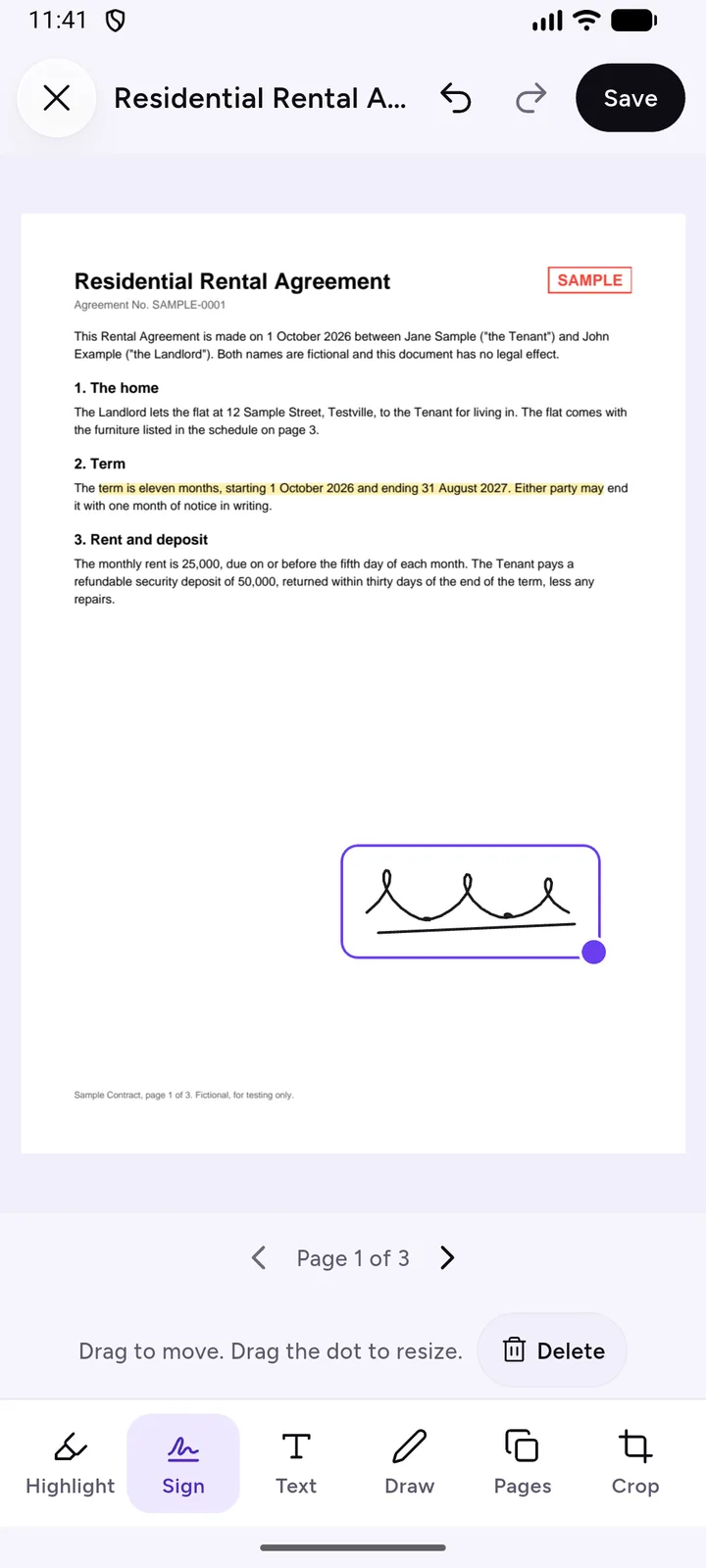
Open any PDF you've saved in DocIt and tap Edit PDF. Six tools sit along the bottom:
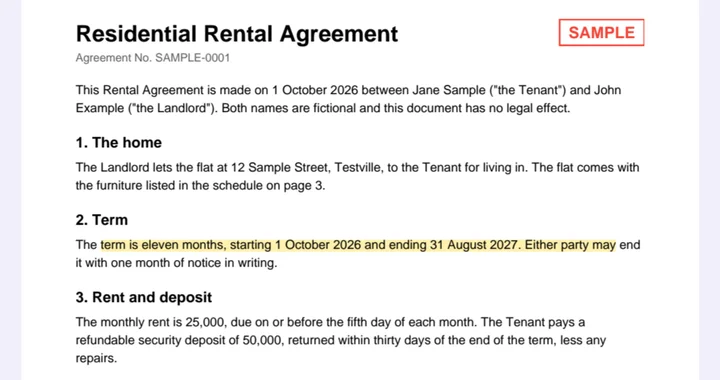
- Highlight: drag over words to highlight them in yellow, green or pink, or switch to underline.
- Signing: saving a signed PDF isn't available in DocIt.
- Text: tap the page and type, for a date, a name or a short note. Before you save, you can change its size and colour or retype it.
- Draw: a thin or thick pen for ticks, circles and arrows.
- Pages: turn a page, delete it, drag pages into a new order, or add another PDF's pages to the end.
- Crop: trim the edges of a page, or set the crop once and apply it to all pages.
Undo and Redo sit at the top. When you tap Save, DocIt asks whether to replace the document's file or save a copy, so you can keep the original as it was.
How to edit a PDF on Android with DocIt
- Get the PDF into DocIt. Import it from Files, share it in from another app, or scan several pages, which DocIt saves as one PDF.
- Open the document and tap Edit PDF.
- Pick a tool and work page by page. The arrows under the page move between pages.
- Tap Save, then choose Save to replace the file or Save as a copy to keep both.
- Share the edited PDF from the document page, or keep it where it is.
A single scanned page is saved as an image, not a PDF, so the editor won't open it. Turn it into a PDF first with Photos to PDF in the add menu, then edit that.
Other PDF jobs DocIt handles
A few related jobs sit outside the editor, on the document's page or in your document list:
- Make it smaller: shrink a PDF to under 100 KB, 200 KB, 500 KB or 1 MB for an upload form. The text in the smaller file becomes part of the page picture, so you can't select it any more.
- Split PDF: one document per page, or ranges like 1-2 and 3-5. The original stays as it is.
- Save pages as pictures: a JPG for each page.
- Copy text: pull the words out of a PDF or scan to paste somewhere else. See copying text from a photo or PDF.
- Merge PDFs: select several PDFs in a list and tap Merge selected to join them into one.
Other ways to edit a PDF, honestly
DocIt isn't the only option, and for some jobs it's the wrong one.
- You need to change the existing wording: go back to the file the PDF was made from and export a new PDF. Paid desktop editors, such as Adobe Acrobat Pro, can also change text in many PDFs.
- You're on a computer: our free PDF tools run in your browser and don't upload your files. They rotate, reorder, delete, merge and split pages, but they don't sign or annotate.
- You only need to sign: Adobe Acrobat Reader for Android has a free Fill & Sign tool. DocIt can't save a signed PDF.
Limits worth knowing
- It edits PDFs only. Photos need to become a PDF first.
- Existing words can't be changed, only added to.
- Highlight works on PDFs with real text. On a scan, use Draw.
- DocIt runs on Android only, in English.
- Files are encrypted on your phone with AES-256. Names, numbers and dates sit in the app's database without that extra layer. How DocIt protects your documents.
DocIt is also a document scanner that works offline, so you can scan a paper form, sign it and send it back from one app. It's free on Google Play.
Questions
Can I change the words that are already in the PDF?
No. You can add text on top of the page, highlight and draw, but you can't rewrite or delete the words that were there before. If you need to change the wording, edit the original Word or Google Docs file and make a new PDF.
Why can't I highlight my scanned PDF?
Highlight and underline need text you can select. A scan is a picture of a page, so there is nothing to select. Use Draw with the thick pen and a light colour to mark it instead.
Does DocIt add a watermark?
No. Edited PDFs are saved without a watermark, and there are no ads.
Do I need the internet to edit?
No. Editing runs on your phone. Your documents are not uploaded and never reach us: our only server receives anonymous usage counts.
Can I edit a password-protected PDF?
Yes, once DocIt has opened it. Enter its password when you import it, then tap Edit PDF. A PDF that is still locked asks you to unlock it first.